Introduction
If you read this page, it’s probably because you would like to automatically sync the Space Invaders you have flashed from the FlashInvaders app with the Trackinvaders app. To do so, you will need to find your official FlashInvaders UUID and this page will guide you through the process.
A UUID (Universally Unique Identifier) is a 36-character alphanumeric string that uniquely identifies you (for example, 8f443b6d-d05b-45be-80a3-0c3700627ddb is a UUID).
To find your UUID, you will have to intercept a network request made by the FlashInvaders app from your device to the official Space Invaders server. Your UUID will be part of the request URL.
iOS guide
Step 1: Finding your UUID
- Connect your iOS device to the same Wi-Fi network as your computer.
- Install Charles Proxy on your computer, accept the license and accept the permissions if requested (the trial version shows a popup every 30 minutes but is sufficient).
- Find your computer’s IP address (usually something like 192.168.1.xx):
- on macOS, go to System Settings > Network, select your Wi-Fi connection, tap Details and note the IP address of your computer.
- On Windows, press
Win+R, typecmd, press Enter and run the command:
Look for the IPv4 Address under your active network connection.ipconfig
- On your iOS device, go to Settings > Wi-Fi, select your network, and scroll down to “HTTP Proxy”.
- Set the HTTP Proxy to Manual and enter your computer’s IP address noted in step 3. Set the port to 8888.
- If a confirmation dialog appears on your computer, click on “Allow” to allow the connection to Charles Proxy.
- On your iOS device, open Safari, visit https://chls.pro/ssl and tap “Allow” to download the Charles Proxy SSL certificate.
- Go to Settings > Profile Downloaded.
- Tap “Install” in the top right corner, enter your passcode if prompted, and then tap “Install” again.
- Go to Settings > General > About > Certificate Trust Settings.
- Toggle on full trust for the Charles Proxy certificate you just installed.
- Open the FlashInvaders app and go to your profile.
- In Charles Proxy, on the left sidebar, you should see an entry api.space-invaders.com within the “Encrypted” section.
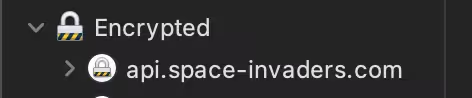
- Right-click on it and select “Enable SSL Proxying”.
- Right-click a second time on the entry and select “Focus”, it will pin it to the top of the list.
- On your iOS device, restart the FlashInvaders app and go to your profile.
- In Charles Proxy, you should now see a new entry api.space-invaders.com.
- Unfold the content until you see a request that contains ?uid=1d796568-6470-439d-8606-2a630fc83aa3 where 1d796568-6470-439d-8606-2a630fc83aa3 is your UUID.
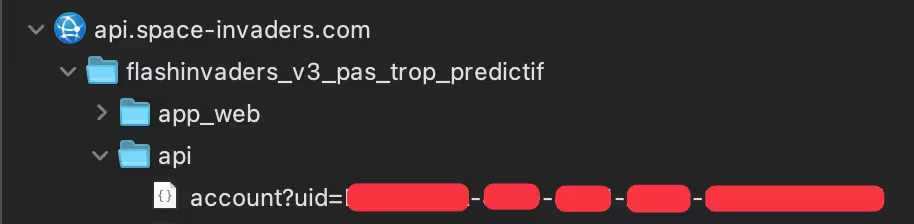
- Note the UUID somewhere safe, and enter it in the Trackinvaders app settings.
Step 2: Cleaning up
Now that you have your UUID, you can reset your iOS device’s network settings, uninstall the Charles Proxy certificate, and uninstall the Charles Proxy app from your computer.
- On your iOS device, go to Settings > Wi-Fi, select your network, and scroll down to “HTTP Proxy”.
- Set the HTTP Proxy to Off.
- Go to Settings > General > VPN & Device Management.
- Tap on the “Charles Proxy profile”.
- Tap “Remove Profile” and confirm the removal.
- Uninstall the Charles Proxy app from your computer.
Android guide
Step 1: Finding your UUID
- Download the Android SDK Platform Tools
- Extract the downloaded ZIP file to a folder on your computer (the next steps will assume you extracted it to
C:\Users\yourusername\platform-toolson Windows or/Users/yourusername/platform-toolson macOS). - Connect your Android device to your computer using a USB cable.
- Enable USB Debugging on your Android device:
- Go to Settings > About phone.
- Tap on Build number 7 times to enable Developer options.
- Go back to Settings > System > Developer options and enable USB debugging.
- Open a terminal on your computer:
- On Windows, press
Win + R, typecmd, and press Enter. - On macOS, open the Terminal application from Applications > Utilities.
- On Windows, press
- Navigate to the folder where you extracted the Android SDK Platform Tools:
- On Windows:
cd C:\Users\yourusername\platform-tools - On macOS:
cd /Users/yourusername/platform-tools
- On Windows:
- Run the following command to ensure your device is recognized:
You should see your device listed. If not, ensure USB debugging is enabled../adb devices - Run the following command to capture device logs:
./adb logcat | grep "api.space-invaders" - Open the FlashInvaders app on your Android device and go to your profile.
- In the terminal, you should see log entries similar to:
06-15 13:43:15.974 847 847 D onPageFinished: url: https://api.space-invaders.com/flashinvaders_v3_pas_trop_predictif/app_web/account?uid=1d796568-6470-439d-8606-2a630fc83aa3 - Your UUID is the part of the URL after
?uid=, for example, in the above log entry, the UUID is1d796568-6470-439d-8606-2a630fc83aa3. - Note the UUID somewhere safe, and enter it in the Trackinvaders app settings.
Step 2: Cleaning up
Now that you have your UUID, you can disable Developer options on your Android device and remove the Android SDK Platform Tools from your computer.
- On your Android device, go to Settings > System > Developer options.
- Toggle off Developer options.
- Delete the Android SDK Platform Tools folder from your computer.